


Cara membuat emoticon di blog
HeLo adik-adik sekarang aku akan membuat emoticon di blog,Bagaimana cara membuat emoticon di blog.
Langsung Saja Sob:

6. Copy kode berikut & letakkan di atas </body>:
8. You are done!
Langsung Saja Sob:

1. Masuk ke Design/Template > Edit HTML
2. Centang "Expand Widget Templates"
3. Copy paste kode CSS berikut di ATAS ]]></b:skin> (cari dg Ctrl + F):
Jika ingin ganti warna background, ganti #EFF5FB dengan kode warna lain..bukarahasiasmiley {background: none repeat scroll 0 0 #EFF5FB!important;font-size: small !important;padding: 5px !important;margin:auto !important;text-align: left !important;font-weight:bold !important;width:100% !important;-moz-background-clip: -moz-initial;-moz-background-origin: -moz-initial;-moz-background-inline-policy: -moz-initial;}.bukarahasiasmiley span {padding-right: 3px !important;}img.brbsmly {height: auto !important;vertical-align: middle !important;width: auto !important;border:0px !important;}
4. Cari <b:if cond='data:post.embedCommentForm'>. Biasanya ada dua tag xml seperti itu, cari & pilih yg kedua, yaitu yg berpasangan dengan <b:include data='post' name='comment-form'/>.
<b:if cond='data:post.embedCommentForm'>
<b:include data='post' name='comment-form'/>
5. Copy kode HTML berikut (klik select all & copy), letakkan di BAWAH/SETELAH <b:if cond='data:post.embedCommentForm'>.
6. Copy kode berikut & letakkan di atas </body>:
<script src='7. Save template.
https://sites.google.com/site/bukarahasiahost/blogger-comment-smileys/bukarahasiablogspot-ysmileys-bloggercomments.txt' type='text/javascript'></script>
8. You are done!
Yahoo Messege Di Blogspot
 Yahoo MeSsEgE
Secara default kotak komentar (form comment) Blogger platform tidak dilengkapi dengan emoticons, tapi sobat jangan khawatir dengan sedikit tips dan trik kita bisa mengakalinya dengan memasang dan menambahkan sedikit script yang berisi beberapa kumpulan Yahoo messenger emoticons yang umum dipakai dalam chat.
Langkah-langkahnya adalah :
- Login di Blogger > Template > Edit HTML
- Centang pada Expand Widget Templates
- Cari kode dibawah ini
<b:if cond='data:post.embedCommentForm'>
<b:include data='post' name='comment-form'/>
Copy kode dibawah ini kemudian letakkan (paste) diantara kode diatas
<div style='-moz-background-clip: -moz-initial; -moz-background-origin: -moz-initial; -moz-background-inline-policy: -moz-initial; width: 369; text-align: left; border: 1px solid #2b2b2b; padding: 5px; height:86'>
<b>
<img border='0' height='18' src='http://us.i1.yimg.com/us.yimg.com/i/mesg/emoticons7/21.gif' width='18'/> :))
<img border='0' height='18' src='http://us.i1.yimg.com/us.yimg.com/i/mesg/emoticons7/71.gif' width='18'/> ;))
<img border='0' height='18' src='http://us.i1.yimg.com/us.yimg.com/i/mesg/emoticons7/5.gif' width='18'/> ;;)
<img border='0' height='18' src='http://us.i1.yimg.com/us.yimg.com/i/mesg/emoticons7/4.gif' width='18'/> :D
<img border='0' height='18' src='http://us.i1.yimg.com/us.yimg.com/i/mesg/emoticons7/3.gif' width='18'/> ;)
<img border='0' height='18' src='http://us.i1.yimg.com/us.yimg.com/i/mesg/emoticons7/10.gif' width='18'/> :p
<img border='0' height='18' src='http://us.i1.yimg.com/us.yimg.com/i/mesg/emoticons7/20.gif' width='22'/> :((
<img border='0' height='18' src='http://us.i1.yimg.com/us.yimg.com/i/mesg/emoticons7/1.gif' width='18'/> :)
<img border='0' height='18' src='http://us.i1.yimg.com/us.yimg.com/i/mesg/emoticons7/2.gif' width='18'/> :(
<img border='0' height='18' src='http://us.i1.yimg.com/us.yimg.com/i/mesg/emoticons7/8.gif' width='18'/> :X
<img border='0' height='18' src='http://us.i1.yimg.com/us.yimg.com/i/mesg/emoticons7/12.gif' width='18'/> =((
<img border='0' height='18' src='http://us.i1.yimg.com/us.yimg.com/i/mesg/emoticons7/13.gif' width='18'/> :-o
<img border='0' height='18' src='http://us.i1.yimg.com/us.yimg.com/i/mesg/emoticons7/7.gif' width='20'/> :-/
<img border='0' height='18' src='http://us.i1.yimg.com/us.yimg.com/i/mesg/emoticons7/11.gif' width='18'/> :-*
<img border='0' height='18' src='http://us.i1.yimg.com/us.yimg.com/i/mesg/emoticons7/22.gif' width='18'/> :|
<img border='0' height='18' src='http://us.i1.yimg.com/us.yimg.com/i/mesg/emoticons7/35.gif' width='24'/> 8-}
<img border='0' height='18' src='http://us.i1.yimg.com/us.yimg.com/i/mesg/emoticons7/100.gif' width='31'/> :)]
<img border='0' height='18' src='http://us.i1.yimg.com/us.yimg.com/i/mesg/emoticons7/102.gif' width='44'/> ~x(
<img border='0' height='18' src='http://us.i1.yimg.com/us.yimg.com/i/mesg/emoticons7/104.gif' width='30'/> :-t
<img border='0' height='18' src='http://us.i1.yimg.com/us.yimg.com/i/mesg/emoticons7/66.gif' width='18'/> b-(
<img border='0' height='18' src='http://us.i1.yimg.com/us.yimg.com/i/mesg/emoticons7/62.gif' width='18'/> :-L
<img border='0' height='18' src='http://us.i1.yimg.com/us.yimg.com/i/mesg/emoticons7/14.gif' width='34'/> x(
<img border='0' height='18' src='http://us.i1.yimg.com/us.yimg.com/i/mesg/emoticons7/24.gif' width='30'/> =))
</b>
</div>
Kemudian cari kode </body>
Copy kode dibawah ini dan paste tepat diatas kode </body>
<script src="http://bloggerpeer.googlecode.com/files/smiley.js" type="text/javascript"/><noscript><a href="http://bloggerpeer.blogspot.com" target="_blank"><span style="font-size: x-small;">Add Smilies</span></a></noscript>
Terakhir simpan dan sobat sudah bisa menggunakan emoticon dari Yahoo ini.
Cara Mencari Dengan Cepat(CTRL+F)
Cara Mencari Dengan Cepat(CTRL+F)
Cara Menghapus Blog Anda
Helo Aku Akan memberi tahu bagaimana cara menghapus blog yang tidak secara permanent
dengan yang blog baru
langsung saja sob/gan:

dengan yang blog baru
langsung saja sob/gan:
- masuk ke blog akun anda
- buka menu rancangan
- klik yang di paling bawah (Lainya)
- Cari delete/hapus blog
cara membuat efek bintang jatuh pada link
<script scr='http://misbahudin.googlecode.com/files/daun%.js'/>
File Code Daud berjatuhan yang di AtasCaranya :
- Buka Akun blogger anda
- buka rancangan
- buka tatatelak
- tambah gadget,lalu buka HTML/JAVA SPIRT
- copy kan file code daun,yang ada paling ATAS
Sudah..
Cara Membuat Efek Read More Pada Blogger
Helo Aku Akan Membuat Efek Read More
1). Buka Blogger
2). Template >> Edit HTML >> Centang Expand Template Widget
3). Cari Kode </head> Agar Mudah CTRL+F
4). Masukan Kode Di bawah Ini Di Atas Kode </head>
5). Cari Kode <data:post.body/> Ganti Dengan:
Sudah
1). Buka Blogger
2). Template >> Edit HTML >> Centang Expand Template Widget
3). Cari Kode </head> Agar Mudah CTRL+F
4). Masukan Kode Di bawah Ini Di Atas Kode </head>
<!-- Auto read more script -http://http://bloggerkerendanhebat.blogspot.com/- Start -->
<script type='text/javascript'>
var thumbnail_mode = "yes"; //yes-dengan gambar,no-tanpa gambar
summary_noimg = 430;
summary_img = 340;
img_thumb_height = 150;
img_thumb_width = 150;
</script>
<script type='text/javascript'>
//<![CDATA[
function removeHtmlTag(strx,chop){
if(strx.indexOf("<")!=-1)
{
var s = strx.split("<");
for(var i=0;i<s.length;i++){
if(s[i].indexOf(">")!=-1){
s[i] = s[i].substring(s[i].indexOf(">")+1,s[i].length);
}
}
strx = s.join("");
}
chop = (chop < strx.length-1) ? chop : strx.length-2;
while(strx.charAt(chop-1)!=' ' && strx.indexOf(' ',chop)!=-1) chop++;
strx = strx.substring(0,chop-1);
return strx+'...';
}
function createSummaryAndThumb(pID){
var div = document.getElementById(pID);
var imgtag = "";
var img = div.getElementsByTagName("img");
var summ = summary_noimg;
if(thumbnail_mode == "yes") {
if(img.length>=1) {
imgtag = '<span style="float:left; padding:0px 10px 5px 0px;"><img src="'+img[0].src+'" width="'+img_thumb_width+'px" height="'+img_thumb_height+'px"/></span>';
summ = summary_img;
}
}
var summary = imgtag + '<div>' + removeHtmlTag(div.innerHTML,summ) + '</div>';
div.innerHTML = summary;
}
//]]>
</script>
<!-- Auto read more script -http://Sopyan-7.blogspot.com- End -->
5). Cari Kode <data:post.body/> Ganti Dengan:
<b:if cond='data:blog.pageType != "item"'>6). Simpan / Pratinjau
<div expr:id='"summary" + data:post.id'><data:post.body/></div>
<script type='text/javascript'>createSummaryAndThumb("summary<data:post.id/>");
</script>
<span class='rmlink' style='float:right;padding-top:20px;'>
<a expr:href='data:post.url'>»»  READMORE...</a></span>
</b:if>
<b:if cond='data:blog.pageType == "item"'><data:post.body/></b:if>
Sudah
Cara Memasang CCTV Animasi Di blog
Helo Saya Akan Memberi Tahu Cara Memasang CCTV ANIMASI
APAHKAH Anda tahu CCTVAnimasi..?
yang Pasti pada udah Tau yaa...
Nah Biasanya kan CCTV itu buat ngerekam Perampok...
Nah Loh perampok...#gosong deh.....
yaa.... kalow diblogger Berfungsi Memperindah deh [cool] gitu.....
Tapi kali ini saya mau Bagi-Bagi Cara Pasang CCTV(camera)
Langsung ke TiTik yaaa...
1.Log in ke Blogger
2. Menuju Rancangan
3. Ke Elemen Laman
4.Tambah Gadget
5.udah tau kan HTML/java scrip
Nah sekarang Masukin Script kayak Ginian....
#dibawah ini :)
yang di bawah ini Posisi nya berada pada sebelah kanan......
dan saya post juga kok posisi sebelah kiri....
tinggal liat bagian bawah aja kok....
<center><a href="javascript:void(0);"onclick="showHideAT()"/><img border="0" src="https://blogger.googleusercontent.com/img/b/R29vZ2xl/AVvXsEj-nfmhyphenhyphennwPOuPF03TeLUESBCZ_oM34V7-_7iNIilGCKEkZVvo6c_6HenP7q1TvcJn39dkpsgvy8_69GMMPZgI1Ob-VB-cB2fTrc7OKPOuHXI-nMAMGhvJGnYwhSp8bP_Hxlp9tIA1RB44d/s120/Hey+coy+%28+www.fake-buku.blogspot.com+%29+CCTV.gif" alt="cbox" title="Click | About Me" style="display:scroll;position: fixed; top:0px;right:0px;cursor:pointer;style=" opacity:1;filter:alpha(opacity="100)&amp;amp;amp;amp;amp;amp;amp;amp;amp;amp;amp;amp;amp;amp;quot;" onmouseover="this.style.opacity=1.0;this.filters.alpha.opacity=100" onmouseout="this.style.opacity=1.0;this.filters.alpha.opacity=100" ;" height="90px" width="77px" /></a></center>
<style type="text/css">
#at{
position:fixed;
right:450px;
z-index:+1000;
}
* html #at{position:relative;}
.attab{
height:100px;
width:30px;
float:left;
cursor:pointer;
background:url();
}
.atcontent{
float:left;
border:1px solid #000000;
background:#000000 repeat-y center;
-moz-border-radius-topleft:15px;
-moz-border-radius-topright:15px;
-moz-border-radius-bottomleft:15px;
-moz-border-radius-bottomright:15px;
padding:9px;
}
</style>
<script type="text/javascript">
function showHideAT(){
var at = document.getElementById("at");
var w = at.offsetWidth;
at.opened ? moveAT(0, -200-w) : moveAT(20-w, 0);
at.opened = !at.opened;
}
function moveAT(x0, xf){
var at = document.getElementById("at");
var dx = Math.abs(x0-xf) > 25 ? 35 : 1;
var dir = xf>x0 ? 1 : -1;
var x = x0 + dx * dir;
at.style.top = x.toString() + "px";
if(x0!=xf){setTimeout("moveAT("+x+", "+xf+")", 10);}
}
</script>
<div id="at">
<div class="attab" onclick="showHideAT()"> </div>
<div class="atcontent">
<div align="center">
<div style="background:url(http://3.bp.blogspot.com/_bBL9ze_JZsw/TT_XA8lKqMI/AAAAAAAAAM0/uiy-BP_zbN8/s1600/black25.png) no-repeat;">
<br/>
<br/>
<br/>
<center><a href="https://plus.google.com/u/0/110891635296115123215"><img border="0" title="My.Google" alt="My.Google" src="https://blogger.googleusercontent.com/img/b/R29vZ2xl/AVvXsEh6zo8ZIQC8Kb0uGXePOhMaJM0pMP0kSPHqHPQ-xkHGGVsYF1T9NFeHC3yLeGUlkAO8PtQQFT09dAxGSWPXEp69XYbxWi69mt6eRTwAwbap-sUzmZ06dNhp5sK0cWei02lWntQXkAjw/s150/Hey+coy+%28+www.fake-buku.blogspot.com+%29+google_plus.png"/></a>
<a href="http://www.facebook.com/Arta.Crew"><img border="0" title="My.Facebook" alt="My.Facebook" src="https://blogger.googleusercontent.com/img/b/R29vZ2xl/AVvXsEhKBM7SLZU6-nlpnVZqDdts2A3c8ypiQLP3g2ym3gEUzq_jLu5JmDMO7G40Hf2CDSD-BJSnSAskFwdxX8wi684hBb2gi_1hz-7JpwbDb5ieg6xTMyA3x5pV0cHMATasUBUBZD4SmQxV/s150/Hey+coy+%28+www.fake-buku.blogspot.com+%29+inside-facebook.png"/></a>
<a href="http://www.twitter.com/ArtaCreativity"><img border="0" title="My.Twitter" alt="My.Twitter" src="https://blogger.googleusercontent.com/img/b/R29vZ2xl/AVvXsEhwPhyXKbDf-m1v5YJ0-QAUGq9JoxOlHp2Li68T2DFslPGS3nXAS6OfVLN-DwPFn7ivPGN_V2yo3sJj_1ZKXxqqJJXDgDvxmI4ajxeUhaEn6-aaVuIx8Wim7oZ0GjiLwnoMb0FuwjGJ/s150/Hey+coy+%28+www.fake-buku.blogspot.com+%29+glossy-Twitter.png"/>
</a></center>
<br/>
<script type="text/javascript">
var at = document.getElementById("at");
at.style.top = (-200-at.offsetWidth).toString() + "px";
</script></div></div></div></div>
SaVe OKz
<center><a href="javascript:void(0);"onclick="showHideAT()"/><img border="0" src="https://blogger.googleusercontent.com/img/b/R29vZ2xl/AVvXsEj-nfmhyphenhyphennwPOuPF03TeLUESBCZ_oM34V7-_7iNIilGCKEkZVvo6c_6HenP7q1TvcJn39dkpsgvy8_69GMMPZgI1Ob-VB-cB2fTrc7OKPOuHXI-nMAMGhvJGnYwhSp8bP_Hxlp9tIA1RB44d/s120/Hey+coy+%28+www.fake-buku.blogspot.com+%29+CCTV.gif" alt="cbox" title="Click | About Me" style="display:scroll;position: fixed; top:0px;left:0px;cursor:pointer;style=" opacity:1;filter:alpha(opacity="100)&amp;amp;amp;amp;amp;amp;amp;amp;amp;amp;amp;amp;amp;amp;quot;" onmouseover="this.style.opacity=1.0;this.filters.alpha.opacity=100" onmouseout="this.style.opacity=1.0;this.filters.alpha.opacity=100" ;" height="90px" width="77px" /></a></center>
<style type="text/css">
#at{
position:fixed;
right:450px;
z-index:+1000;
}
* html #at{position:relative;}
.attab{
height:100px;
width:30px;
float:left;
cursor:pointer;
background:url();
}
.atcontent{
float:left;
border:1px solid #000000;
background:#000000 repeat-y center;
-moz-border-radius-topleft:15px;
-moz-border-radius-topright:15px;
-moz-border-radius-bottomleft:15px;
-moz-border-radius-bottomright:15px;
padding:9px;
}
</style>
<script type="text/javascript">
function showHideAT(){
var at = document.getElementById("at");
var w = at.offsetWidth;
at.opened ? moveAT(0, -200-w) : moveAT(20-w, 0);
at.opened = !at.opened;
}
function moveAT(x0, xf){
var at = document.getElementById("at");
var dx = Math.abs(x0-xf) > 25 ? 35 : 1;
var dir = xf>x0 ? 1 : -1;
var x = x0 + dx * dir;
at.style.top = x.toString() + "px";
if(x0!=xf){setTimeout("moveAT("+x+", "+xf+")", 10);}
}
</script>
<div id="at">
<div class="attab" onclick="showHideAT()"> </div>
<div class="atcontent">
<div align="center">
<div style="background:url(http://3.bp.blogspot.com/_bBL9ze_JZsw/TT_XA8lKqMI/AAAAAAAAAM0/uiy-BP_zbN8/s1600/black25.png) no-repeat;">
<br/>
<br/>
<br/>
<center><a href="https://plus.google.com/u/0/110891635296115123215"><img border="0" title="My.Google" alt="My.Google" src="https://blogger.googleusercontent.com/img/b/R29vZ2xl/AVvXsEh6zo8ZIQC8Kb0uGXePOhMaJM0pMP0kSPHqHPQ-xkHGGVsYF1T9NFeHC3yLeGUlkAO8PtQQFT09dAxGSWPXEp69XYbxWi69mt6eRTwAwbap-sUzmZ06dNhp5sK0cWei02lWntQXkAjw/s150/Hey+coy+%28+www.fake-buku.blogspot.com+%29+google_plus.png"/></a>
<a href="http://www.facebook.com/Arta.Crew"><img border="0" title="My.Facebook" alt="My.Facebook" src="https://blogger.googleusercontent.com/img/b/R29vZ2xl/AVvXsEhKBM7SLZU6-nlpnVZqDdts2A3c8ypiQLP3g2ym3gEUzq_jLu5JmDMO7G40Hf2CDSD-BJSnSAskFwdxX8wi684hBb2gi_1hz-7JpwbDb5ieg6xTMyA3x5pV0cHMATasUBUBZD4SmQxV/s150/Hey+coy+%28+www.fake-buku.blogspot.com+%29+inside-facebook.png"/></a>
<a href="http://www.twitter.com/ArtaCreativity"><img border="0" title="My.Twitter" alt="My.Twitter" src="https://blogger.googleusercontent.com/img/b/R29vZ2xl/AVvXsEhwPhyXKbDf-m1v5YJ0-QAUGq9JoxOlHp2Li68T2DFslPGS3nXAS6OfVLN-DwPFn7ivPGN_V2yo3sJj_1ZKXxqqJJXDgDvxmI4ajxeUhaEn6-aaVuIx8Wim7oZ0GjiLwnoMb0FuwjGJ/s150/Hey+coy+%28+www.fake-buku.blogspot.com+%29+glossy-Twitter.png"/>
</a></center>
<br/>
<script type="text/javascript">
var at = document.getElementById("at");
at.style.top = (-200-at.offsetWidth).toString() + "px";
</script></div></div></div></div>
APAHKAH Anda tahu CCTVAnimasi..?
yang Pasti pada udah Tau yaa...
Nah Biasanya kan CCTV itu buat ngerekam Perampok...
Nah Loh perampok...#gosong deh.....
yaa.... kalow diblogger Berfungsi Memperindah deh [cool] gitu.....
Tapi kali ini saya mau Bagi-Bagi Cara Pasang CCTV(camera)
Langsung ke TiTik yaaa...
1.Log in ke Blogger
2. Menuju Rancangan
3. Ke Elemen Laman
4.Tambah Gadget
5.udah tau kan HTML/java scrip
Nah sekarang Masukin Script kayak Ginian....
#dibawah ini :)
yang di bawah ini Posisi nya berada pada sebelah kanan......
dan saya post juga kok posisi sebelah kiri....
tinggal liat bagian bawah aja kok....
<center><a href="javascript:void(0);"onclick="showHideAT()"/><img border="0" src="https://blogger.googleusercontent.com/img/b/R29vZ2xl/AVvXsEj-nfmhyphenhyphennwPOuPF03TeLUESBCZ_oM34V7-_7iNIilGCKEkZVvo6c_6HenP7q1TvcJn39dkpsgvy8_69GMMPZgI1Ob-VB-cB2fTrc7OKPOuHXI-nMAMGhvJGnYwhSp8bP_Hxlp9tIA1RB44d/s120/Hey+coy+%28+www.fake-buku.blogspot.com+%29+CCTV.gif" alt="cbox" title="Click | About Me" style="display:scroll;position: fixed; top:0px;right:0px;cursor:pointer;style=" opacity:1;filter:alpha(opacity="100)&amp;amp;amp;amp;amp;amp;amp;amp;amp;amp;amp;amp;amp;amp;quot;" onmouseover="this.style.opacity=1.0;this.filters.alpha.opacity=100" onmouseout="this.style.opacity=1.0;this.filters.alpha.opacity=100" ;" height="90px" width="77px" /></a></center>
<style type="text/css">
#at{
position:fixed;
right:450px;
z-index:+1000;
}
* html #at{position:relative;}
.attab{
height:100px;
width:30px;
float:left;
cursor:pointer;
background:url();
}
.atcontent{
float:left;
border:1px solid #000000;
background:#000000 repeat-y center;
-moz-border-radius-topleft:15px;
-moz-border-radius-topright:15px;
-moz-border-radius-bottomleft:15px;
-moz-border-radius-bottomright:15px;
padding:9px;
}
</style>
<script type="text/javascript">
function showHideAT(){
var at = document.getElementById("at");
var w = at.offsetWidth;
at.opened ? moveAT(0, -200-w) : moveAT(20-w, 0);
at.opened = !at.opened;
}
function moveAT(x0, xf){
var at = document.getElementById("at");
var dx = Math.abs(x0-xf) > 25 ? 35 : 1;
var dir = xf>x0 ? 1 : -1;
var x = x0 + dx * dir;
at.style.top = x.toString() + "px";
if(x0!=xf){setTimeout("moveAT("+x+", "+xf+")", 10);}
}
</script>
<div id="at">
<div class="attab" onclick="showHideAT()"> </div>
<div class="atcontent">
<div align="center">
<div style="background:url(http://3.bp.blogspot.com/_bBL9ze_JZsw/TT_XA8lKqMI/AAAAAAAAAM0/uiy-BP_zbN8/s1600/black25.png) no-repeat;">
<br/>
<br/>
<br/>
<center><a href="https://plus.google.com/u/0/110891635296115123215"><img border="0" title="My.Google" alt="My.Google" src="https://blogger.googleusercontent.com/img/b/R29vZ2xl/AVvXsEh6zo8ZIQC8Kb0uGXePOhMaJM0pMP0kSPHqHPQ-xkHGGVsYF1T9NFeHC3yLeGUlkAO8PtQQFT09dAxGSWPXEp69XYbxWi69mt6eRTwAwbap-sUzmZ06dNhp5sK0cWei02lWntQXkAjw/s150/Hey+coy+%28+www.fake-buku.blogspot.com+%29+google_plus.png"/></a>
<a href="http://www.facebook.com/Arta.Crew"><img border="0" title="My.Facebook" alt="My.Facebook" src="https://blogger.googleusercontent.com/img/b/R29vZ2xl/AVvXsEhKBM7SLZU6-nlpnVZqDdts2A3c8ypiQLP3g2ym3gEUzq_jLu5JmDMO7G40Hf2CDSD-BJSnSAskFwdxX8wi684hBb2gi_1hz-7JpwbDb5ieg6xTMyA3x5pV0cHMATasUBUBZD4SmQxV/s150/Hey+coy+%28+www.fake-buku.blogspot.com+%29+inside-facebook.png"/></a>
<a href="http://www.twitter.com/ArtaCreativity"><img border="0" title="My.Twitter" alt="My.Twitter" src="https://blogger.googleusercontent.com/img/b/R29vZ2xl/AVvXsEhwPhyXKbDf-m1v5YJ0-QAUGq9JoxOlHp2Li68T2DFslPGS3nXAS6OfVLN-DwPFn7ivPGN_V2yo3sJj_1ZKXxqqJJXDgDvxmI4ajxeUhaEn6-aaVuIx8Wim7oZ0GjiLwnoMb0FuwjGJ/s150/Hey+coy+%28+www.fake-buku.blogspot.com+%29+glossy-Twitter.png"/>
</a></center>
<br/>
<script type="text/javascript">
var at = document.getElementById("at");
at.style.top = (-200-at.offsetWidth).toString() + "px";
</script></div></div></div></div>
<center><a href="javascript:void(0);"onclick="showHideAT()"/><img border="0" src="https://blogger.googleusercontent.com/img/b/R29vZ2xl/AVvXsEj-nfmhyphenhyphennwPOuPF03TeLUESBCZ_oM34V7-_7iNIilGCKEkZVvo6c_6HenP7q1TvcJn39dkpsgvy8_69GMMPZgI1Ob-VB-cB2fTrc7OKPOuHXI-nMAMGhvJGnYwhSp8bP_Hxlp9tIA1RB44d/s120/Hey+coy+%28+www.fake-buku.blogspot.com+%29+CCTV.gif" alt="cbox" title="Click | About Me" style="display:scroll;position: fixed; top:0px;left:0px;cursor:pointer;style=" opacity:1;filter:alpha(opacity="100)&amp;amp;amp;amp;amp;amp;amp;amp;amp;amp;amp;amp;amp;amp;quot;" onmouseover="this.style.opacity=1.0;this.filters.alpha.opacity=100" onmouseout="this.style.opacity=1.0;this.filters.alpha.opacity=100" ;" height="90px" width="77px" /></a></center>
<style type="text/css">
#at{
position:fixed;
right:450px;
z-index:+1000;
}
* html #at{position:relative;}
.attab{
height:100px;
width:30px;
float:left;
cursor:pointer;
background:url();
}
.atcontent{
float:left;
border:1px solid #000000;
background:#000000 repeat-y center;
-moz-border-radius-topleft:15px;
-moz-border-radius-topright:15px;
-moz-border-radius-bottomleft:15px;
-moz-border-radius-bottomright:15px;
padding:9px;
}
</style>
<script type="text/javascript">
function showHideAT(){
var at = document.getElementById("at");
var w = at.offsetWidth;
at.opened ? moveAT(0, -200-w) : moveAT(20-w, 0);
at.opened = !at.opened;
}
function moveAT(x0, xf){
var at = document.getElementById("at");
var dx = Math.abs(x0-xf) > 25 ? 35 : 1;
var dir = xf>x0 ? 1 : -1;
var x = x0 + dx * dir;
at.style.top = x.toString() + "px";
if(x0!=xf){setTimeout("moveAT("+x+", "+xf+")", 10);}
}
</script>
<div id="at">
<div class="attab" onclick="showHideAT()"> </div>
<div class="atcontent">
<div align="center">
<div style="background:url(http://3.bp.blogspot.com/_bBL9ze_JZsw/TT_XA8lKqMI/AAAAAAAAAM0/uiy-BP_zbN8/s1600/black25.png) no-repeat;">
<br/>
<br/>
<br/>
<center><a href="https://plus.google.com/u/0/110891635296115123215"><img border="0" title="My.Google" alt="My.Google" src="https://blogger.googleusercontent.com/img/b/R29vZ2xl/AVvXsEh6zo8ZIQC8Kb0uGXePOhMaJM0pMP0kSPHqHPQ-xkHGGVsYF1T9NFeHC3yLeGUlkAO8PtQQFT09dAxGSWPXEp69XYbxWi69mt6eRTwAwbap-sUzmZ06dNhp5sK0cWei02lWntQXkAjw/s150/Hey+coy+%28+www.fake-buku.blogspot.com+%29+google_plus.png"/></a>
<a href="http://www.facebook.com/Arta.Crew"><img border="0" title="My.Facebook" alt="My.Facebook" src="https://blogger.googleusercontent.com/img/b/R29vZ2xl/AVvXsEhKBM7SLZU6-nlpnVZqDdts2A3c8ypiQLP3g2ym3gEUzq_jLu5JmDMO7G40Hf2CDSD-BJSnSAskFwdxX8wi684hBb2gi_1hz-7JpwbDb5ieg6xTMyA3x5pV0cHMATasUBUBZD4SmQxV/s150/Hey+coy+%28+www.fake-buku.blogspot.com+%29+inside-facebook.png"/></a>
<a href="http://www.twitter.com/ArtaCreativity"><img border="0" title="My.Twitter" alt="My.Twitter" src="https://blogger.googleusercontent.com/img/b/R29vZ2xl/AVvXsEhwPhyXKbDf-m1v5YJ0-QAUGq9JoxOlHp2Li68T2DFslPGS3nXAS6OfVLN-DwPFn7ivPGN_V2yo3sJj_1ZKXxqqJJXDgDvxmI4ajxeUhaEn6-aaVuIx8Wim7oZ0GjiLwnoMb0FuwjGJ/s150/Hey+coy+%28+www.fake-buku.blogspot.com+%29+glossy-Twitter.png"/>
</a></center>
<br/>
<script type="text/javascript">
var at = document.getElementById("at");
at.style.top = (-200-at.offsetWidth).toString() + "px";
</script></div></div></div></div>
Cara Membuat Burung Twitter
Lebih suka mana?? ngetweet apa ngeblog?? kalo ane sih kedua - duanya.. Kali ini ane akan kasih tahu cara membikin burung twitter di blog sobat. Bagi sobat yang tertarik untuk memasang burung twitter terbang atau melayang - layang ini, silahkan ikut tutorial berikut .
1. Log in ke akun blog sobat.
2. Klik Rancangan --> Elemen Laman --> Tambah Gadget --> Pilih HTML/Javascript
Masukkan Script berikut ke dalam kotak yang telah di sediakan.
3. Klik save / simpan.
Tambahan:
Ganti tulisan yang berwarna merah dengan warna icon twitter kesukaan sobat.
Ganti Tulisan yang berwarna biru dengan username twitter sobat.
Semoga membantu!!
1. Log in ke akun blog sobat.
2. Klik Rancangan --> Elemen Laman --> Tambah Gadget --> Pilih HTML/Javascript
Masukkan Script berikut ke dalam kotak yang telah di sediakan.
<!-- floating twitter Bird -->
<script type="text/javascript" src="http://tateluproject.googlecode.com/files/tripleflap.js"></script>
<script type="text/javascript">
var birdSprite="https://blogger.googleusercontent.com/img/b/R29vZ2xl/AVvXsEj8dzh7xHG228NucFFynMffi_BQmrwSuLaoOLaiL_QDva3ea1DVgaSxianN0DE3l7gx0KfBeu1sISasM9U08oCaWTf8a88GKZXs3qZz_GM1ymHTa8rFLbFIYUgeFM4Vx4nQ0wki2rqof6Y/s1600/burung+twitter+terbang.png";
var targetElems=new Array("img","hr","table","td","div","input","textarea","button","select","ul","ol","li","h1","h2","h3","h4","p","code","object","a","b","strong","span");
var twitterAccount = "http://twitter.com/deactivatednumi";
var tweetThisText = "Twitter - UserID http://bloggerpeer.blogspot.com/";
tripleflapInit();
</script>
<script type="text/javascript" src="http://tateluproject.googlecode.com/files/tripleflap.js"></script>
<script type="text/javascript">
var birdSprite="https://blogger.googleusercontent.com/img/b/R29vZ2xl/AVvXsEj8dzh7xHG228NucFFynMffi_BQmrwSuLaoOLaiL_QDva3ea1DVgaSxianN0DE3l7gx0KfBeu1sISasM9U08oCaWTf8a88GKZXs3qZz_GM1ymHTa8rFLbFIYUgeFM4Vx4nQ0wki2rqof6Y/s1600/burung+twitter+terbang.png";
var targetElems=new Array("img","hr","table","td","div","input","textarea","button","select","ul","ol","li","h1","h2","h3","h4","p","code","object","a","b","strong","span");
var twitterAccount = "http://twitter.com/deactivatednumi";
var tweetThisText = "Twitter - UserID http://bloggerpeer.blogspot.com/";
tripleflapInit();
</script>
3. Klik save / simpan.
Tambahan:
Ganti tulisan yang berwarna merah dengan warna icon twitter kesukaan sobat.
Warna Kuning
https://blogger.googleusercontent.com/img/b/R29vZ2xl/AVvXsEjSs1CKWejxVrKgbN1kf2oX7cg77HXmYD4gxAIVlVNBWeR6ABhy3faCBuuCzBa0rrQ5_UooremT7V4X_vwmcgmGqOwCdzSLBqTQ0TSax5x81PKt1zLL7kXE8ITmdM51UfKCxqQSZtoPZ34/s1600/yellow+bird.png
Warna Hitam
https://blogger.googleusercontent.com/img/b/R29vZ2xl/AVvXsEiTlBSx7X6Z6tBWuS2F89qABlVcFTmC2skpIZO-mJQwtH1VRRPc-hvlpKhTFhMuAguaO4eqEfoP-XQiVMidq9BvlA2VkVAhWZRENfIKLfa59F9uQif7gnwPpgMPDQah6N5pAfztA1tlD6M/s1600/black+bird.png
Warna Biru
https://blogger.googleusercontent.com/img/b/R29vZ2xl/AVvXsEhl1Yb6uy24jb-GlxWpgTM4tChZdr9DvJZha6q2c0l9zsET2ecf6PeB8ltTLSzlhjinl9vrSoLAHV8qWWIGmQmoR2LUD70aKpxColrwjy7NNEFaNRWYYXZJ2zESSsbGlRZ4kTk12zrt9EA/s1600/Blue+bird.png
Warna Coklat
https://blogger.googleusercontent.com/img/b/R29vZ2xl/AVvXsEhhpa3gynQGUfNnbJLUbaDtIDXNkJZXq6CxEL5cyDWN553J8BYuWVwo_GAL70LfbKOA448yAmzGCL_XtWLt-M3qoxhpxUASn9Zruc_iBkygBug3Js8exSkXJbH5OVnXvN7NVhkdER3turs/s1600/brown+bird.png
Warna Hijau
https://blogger.googleusercontent.com/img/b/R29vZ2xl/AVvXsEiXUQGrw1vj1M0MDGVBVilHiv1PMreqXbw0dUhGuElUvVEetRcNGs0KYO-N6buVxCFTvaJyYjeLk_DrDzi1b34vTO3U6SJJ6fB-pZKKWK2TtFeLAf3qGu9yf13CHlJR5eIdbijaq5TItFY/s1600/Green+bird.png
Warna Ungu
https://blogger.googleusercontent.com/img/b/R29vZ2xl/AVvXsEhvn738hqURBeraLb9EPNpYpped4IIZHMh7w79ziVJLGnVSWeZ-AHu4XCwBrzDE6JgYxP2fWjfnk3-vG2BaGgCzDXMNFJahsUGenulHGVnv0oDbbi_UtsC6ykefCKF1NLRss9RfJ1M1Vmw/s1600/purple+bird.png
Warna Putih
https://blogger.googleusercontent.com/img/b/R29vZ2xl/AVvXsEgtf7hnYV4mJ2Z50ls4E84IPakH6aqoBVgNqYVzRgDpQtn3U34D9AwmliU5VBj_7vQx4vrm1ochxJ3TYPg4KEA3JaFAlLD4bVc73KZwcvB1uJUNX4auKscx2tGxfVP74CIni-XfN5duL2Q/s1600/white+bird.png
Warna Merah
https://blogger.googleusercontent.com/img/b/R29vZ2xl/AVvXsEgb4br5YwfPARcgkDQWoX3GA5Pa05y-kSD4iKzUS6IFfArtM9Dji36Ew_xONtYZ6jDdI617YSdIKE3gp80EBf5TbNfvxP7czTCZEAAtUw3Cn_wRa5rvtPgKaieUvXdaYSSfnvs0VGyQWnw/s1600/red+bird.png
https://blogger.googleusercontent.com/img/b/R29vZ2xl/AVvXsEjSs1CKWejxVrKgbN1kf2oX7cg77HXmYD4gxAIVlVNBWeR6ABhy3faCBuuCzBa0rrQ5_UooremT7V4X_vwmcgmGqOwCdzSLBqTQ0TSax5x81PKt1zLL7kXE8ITmdM51UfKCxqQSZtoPZ34/s1600/yellow+bird.png
Warna Hitam
https://blogger.googleusercontent.com/img/b/R29vZ2xl/AVvXsEiTlBSx7X6Z6tBWuS2F89qABlVcFTmC2skpIZO-mJQwtH1VRRPc-hvlpKhTFhMuAguaO4eqEfoP-XQiVMidq9BvlA2VkVAhWZRENfIKLfa59F9uQif7gnwPpgMPDQah6N5pAfztA1tlD6M/s1600/black+bird.png
Warna Biru
https://blogger.googleusercontent.com/img/b/R29vZ2xl/AVvXsEhl1Yb6uy24jb-GlxWpgTM4tChZdr9DvJZha6q2c0l9zsET2ecf6PeB8ltTLSzlhjinl9vrSoLAHV8qWWIGmQmoR2LUD70aKpxColrwjy7NNEFaNRWYYXZJ2zESSsbGlRZ4kTk12zrt9EA/s1600/Blue+bird.png
Warna Coklat
https://blogger.googleusercontent.com/img/b/R29vZ2xl/AVvXsEhhpa3gynQGUfNnbJLUbaDtIDXNkJZXq6CxEL5cyDWN553J8BYuWVwo_GAL70LfbKOA448yAmzGCL_XtWLt-M3qoxhpxUASn9Zruc_iBkygBug3Js8exSkXJbH5OVnXvN7NVhkdER3turs/s1600/brown+bird.png
Warna Hijau
https://blogger.googleusercontent.com/img/b/R29vZ2xl/AVvXsEiXUQGrw1vj1M0MDGVBVilHiv1PMreqXbw0dUhGuElUvVEetRcNGs0KYO-N6buVxCFTvaJyYjeLk_DrDzi1b34vTO3U6SJJ6fB-pZKKWK2TtFeLAf3qGu9yf13CHlJR5eIdbijaq5TItFY/s1600/Green+bird.png
Warna Ungu
https://blogger.googleusercontent.com/img/b/R29vZ2xl/AVvXsEhvn738hqURBeraLb9EPNpYpped4IIZHMh7w79ziVJLGnVSWeZ-AHu4XCwBrzDE6JgYxP2fWjfnk3-vG2BaGgCzDXMNFJahsUGenulHGVnv0oDbbi_UtsC6ykefCKF1NLRss9RfJ1M1Vmw/s1600/purple+bird.png
Warna Putih
https://blogger.googleusercontent.com/img/b/R29vZ2xl/AVvXsEgtf7hnYV4mJ2Z50ls4E84IPakH6aqoBVgNqYVzRgDpQtn3U34D9AwmliU5VBj_7vQx4vrm1ochxJ3TYPg4KEA3JaFAlLD4bVc73KZwcvB1uJUNX4auKscx2tGxfVP74CIni-XfN5duL2Q/s1600/white+bird.png
Warna Merah
https://blogger.googleusercontent.com/img/b/R29vZ2xl/AVvXsEgb4br5YwfPARcgkDQWoX3GA5Pa05y-kSD4iKzUS6IFfArtM9Dji36Ew_xONtYZ6jDdI617YSdIKE3gp80EBf5TbNfvxP7czTCZEAAtUw3Cn_wRa5rvtPgKaieUvXdaYSSfnvs0VGyQWnw/s1600/red+bird.png
Ganti Tulisan yang berwarna biru dengan username twitter sobat.
Semoga membantu!!
cara menambah jam di blog anda
Halo Adik2 saya akan memberitahu cara menambahkan jam di blogger caranya gampang lihat di bawah sini caranya ada:
Berikut cara memasang widget Jam di blogger
Berikut cara memasang widget Jam di blogger
- Pertama kunjungi www.clocklink.com
- lalu klik pada menu Gallery (disitu kita bisa memilih kategori-kategori yang ingin kita pilih)
- sebagai contoh kategori analog kita pilih,
- kemudian klik view html tag pada kotak di bawah jam yang kita pilih lalu akan timbul halaman baru di window baru. disitu nanti kita ada ketentuan-ketentuan yang memakai bahasa inggris,
- langsung aja kita pilih accept
- Selanjutnya kita diminta memilih warna (color), {time zone untuk Waktu Indonesia Bagian Barat sebaiknya memilih JOG : Jogyakarta Indonesia Time (GMT + 07.00)} serta jangan lupa tuliskan ukuran (size) jam agar sesuai dengan sidebar tempat meletakan jam itu nantinya. Dapat juga diatur kemudian.
- Copy seluruh kode HTML kemudian disimpan di komputer kita contoh pada notepad.
- Silahkan login ke blogger dengan ID anda
- Klik Tata Letak
- Klik tab Elemen Halaman
- Klik Tambah Gadget
- Klik tanda plus (+) untuk HTML/Javascript
- Copy paste kode yang kita taruh di notepad tadi ke dalam kolom konten yang tersedia
- selesai
Cara Memperbaiki Blog Kena Hacker
Wuih … jadi sangar kan ?… sampai-sampai saya tidak bisa login di
wp-admin dan yang lebih parah lagi saya juga tidak bisa login di C-panel
hosting dan apa yang terjadi ?… 2 hari saya jadi kurang tidur
Googling tapi juga nggak nemu solusi dan akhirnya saya langsung ngunjungi website tempat saya membeli domain dan hosting dan ingin mengadukan kejadian yang membuat pusing kepala …. tapi yang terjadi ternyata webnya sama kena hack juga hingga akhirnya kurang lebih jam 12 malam saya langsung kontak via SMS
Karena nggak ada respons pagi-pagi saya langsung kontak via telp ….eeeeeeee ternyata di suruh nuggu sampai 24 jam untuk bisa normal kembali tapi alhamdulillah belum sampai 24 jam saya sudah bisa login di C-panel hosting dan saya cari script yang aneh-aneh
Setelah ketemu baru deh saya ganti semuanya bahwa ternyata yang berubah semua ada pada file Index.php
Wah seneng juga permasalahan sudah usai dan kini blognya sudah bisa tampil indah lagi seperti yang ada di hadapan sahabat-sahabat semua
Tips bagi sahabat yang blognya pada kena hacker jangan bingung selagi masih dapat login ke wp-admin cari saja tulisan editor di dashboard lalu klik tulisan tersebut dan ganti file index.php dengan mengcopy dari template yang anda pakai saat itu kalau masih juga belum bisa pulih sempurna silahkan login ke c-panel hosting dan ganti semua file index.php
Adapun index.php wordpressnya bisa download dulu di wordpress.org insyalloh semua beres,
Sekian dan salam sukses
Copyi-Right http://www.rizdancreative.net/memperbaiki-blog-yang-kena-hacker
Googling tapi juga nggak nemu solusi dan akhirnya saya langsung ngunjungi website tempat saya membeli domain dan hosting dan ingin mengadukan kejadian yang membuat pusing kepala …. tapi yang terjadi ternyata webnya sama kena hack juga hingga akhirnya kurang lebih jam 12 malam saya langsung kontak via SMS
Karena nggak ada respons pagi-pagi saya langsung kontak via telp ….eeeeeeee ternyata di suruh nuggu sampai 24 jam untuk bisa normal kembali tapi alhamdulillah belum sampai 24 jam saya sudah bisa login di C-panel hosting dan saya cari script yang aneh-aneh
Setelah ketemu baru deh saya ganti semuanya bahwa ternyata yang berubah semua ada pada file Index.php
Wah seneng juga permasalahan sudah usai dan kini blognya sudah bisa tampil indah lagi seperti yang ada di hadapan sahabat-sahabat semua
Tips bagi sahabat yang blognya pada kena hacker jangan bingung selagi masih dapat login ke wp-admin cari saja tulisan editor di dashboard lalu klik tulisan tersebut dan ganti file index.php dengan mengcopy dari template yang anda pakai saat itu kalau masih juga belum bisa pulih sempurna silahkan login ke c-panel hosting dan ganti semua file index.php
Adapun index.php wordpressnya bisa download dulu di wordpress.org insyalloh semua beres,
Sekian dan salam sukses
Copyi-Right http://www.rizdancreative.net/memperbaiki-blog-yang-kena-hacker
Cara Memasang lagu
Halo adik-adik kakak akan memberi cara memasang lagu di blog dengan mudah
Caranya:
Lagunya Dibawah
Caranya:
- buka akun anda
- cari lagu kesukaan anda
- copy codenya
- lalu pergi ke tata telak + gadget cari HTML/Java Sprit Paste lalu simpan
Lagunya Dibawah
Justin bieber - boyfriend
Owl city ft carly rae jepsen - good time
Justin bieber ft big sean- As long as you love me
Maroon 5 - one more night
katy perry - wide awake
Bob ft taylor swift - both of us
florida - whistle
gotye ft kimbra - smebdy tht i usd to knw
Owl city ft carly rae jepsen - good time
Justin bieber ft big sean- As long as you love me
Maroon 5 - one more night
katy perry - wide awake
Bob ft taylor swift - both of us
florida - whistle
gotye ft kimbra - smebdy tht i usd to knw
KPOP TOP SONG
A-jax - one 4 u
B.A.P - No mercy
Big Star - Hot boy
Cn blue - Friday
Sistar - Loving you
T-ara - day by day
Teen top - be ma girl
juniel - illa illa
Teen top - to you
2ne1 - i love you
Super junior - sexy free & single
beast - midnight sun>
beast - beautiful night
A-jax - one 4 u
B.A.P - No mercy
Big Star - Hot boy
Cn blue - Friday
Sistar - Loving you
T-ara - day by day
Teen top - be ma girl
juniel - illa illa
Teen top - to you
2ne1 - i love you
Super junior - sexy free & single
beast - midnight sun>
beast - beautiful night
Cara Menambahkan Jumlah Pengunjung
angkahnya Sbb, silahkan anda masuk di Http://Whos.among.us
Di Sini anda bisa langsung atur dan memilih letak tampilannya.Anda Boleh Meletaknya di kiri atau dikanan dan dibawah. Silahkan pilih sesuai selera anda. Cara mengatur letaknya adalah tinggal arahkan pointer ke kolom bundar kecil yang ada di bawah pengaturan widget. Maka otomatis preview akan ditayangkan di sebelah kirinya. setelah anda memilih widgetnya lalu Copy paste kode html yang telah tersedia ke blog anda.
Caranya :
1. Login ke blogger.anda 2. Tuju ke blog yang akan anda tambahkan lalu klik Rancangan/Tata Letak/Design
3. Klik Tambahkan Widget
4. Lalu klik HTML/JavaScript.
5. Masukkan/paste kode html yang telah anda copy tadi di area HTML lalu klik Save/Simpan.
Blog Lebih Lengkap:
caramembuatada.blogspot.com/
Di Sini anda bisa langsung atur dan memilih letak tampilannya.Anda Boleh Meletaknya di kiri atau dikanan dan dibawah. Silahkan pilih sesuai selera anda. Cara mengatur letaknya adalah tinggal arahkan pointer ke kolom bundar kecil yang ada di bawah pengaturan widget. Maka otomatis preview akan ditayangkan di sebelah kirinya. setelah anda memilih widgetnya lalu Copy paste kode html yang telah tersedia ke blog anda.
Caranya :
1. Login ke blogger.anda 2. Tuju ke blog yang akan anda tambahkan lalu klik Rancangan/Tata Letak/Design
3. Klik Tambahkan Widget
4. Lalu klik HTML/JavaScript.
5. Masukkan/paste kode html yang telah anda copy tadi di area HTML lalu klik Save/Simpan.
Blog Lebih Lengkap:
caramembuatada.blogspot.com/
Tips Kerenz
Emotion Gundam

File Code:
<script src='http://tateluproject.googlecode.com/files/Gundam%20emoticon.js'/>
:b:
<img height='50' src='http://i1108.photobucket.com/albums/h405/christian410/13-1.gif' width='50'/>
:c:
<img height='50' src='http://i1108.photobucket.com/albums/h405/christian410/12-1.gif' width='50'/>
:d:
<img height='50' src='http://i1108.photobucket.com/albums/h405/christian410/11-1.gif' width='50'/>
:e:
<img height='50' src='http://i1108.photobucket.com/albums/h405/christian410/10-1.gif' width='50'/>
:f:
<img height='50' src='http://i1108.photobucket.com/albums/h405/christian410/9-1.gif' width='50'/>
:g:
<img height='50' src='http://i1108.photobucket.com/albums/h405/christian410/8-1.gif' width='50'/>
:h:
<img height='50' src='http://i1108.photobucket.com/albums/h405/christian410/7-1.gif' width='50'/>
:i:
<img height='50' src='http://i1108.photobucket.com/albums/h405/christian410/6-1.gif' width='50'/>
:j:
<img height='50' src='http://i1108.photobucket.com/albums/h405/christian410/5-1.gif' width='50'/>
:k:
<img height='50' src='http://i1108.photobucket.com/albums/h405/christian410/4-1.gif' width='50'/>
:l:
<img height='50' src='http://i1108.photobucket.com/albums/h405/christian410/3-1.gif' width='50'/>
:m:
<img height='50' src='http://i1108.photobucket.com/albums/h405/christian410/2-1.gif' width='50'/>
:n:
<img height='50' src='http://i1108.photobucket.com/albums/h405/christian410/1-1.gif' width='50'/>
:o:
<img height='50' src='http://i1108.photobucket.com/albums/h405/christian410/15-1.gif' width='50'/>
:p:
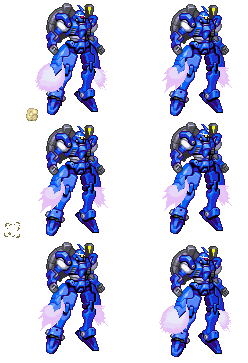
File Code:
<script src='http://tateluproject.googlecode.com/files/Gundam%20emoticon.js'/>
Caranya:
Cara Memasang Emoticon Gundam di Kotak Komentar Blog
Mungkin sobat sudah sering membaca judul yang mirip dengan judul dalam
postingan ini, karena apa?? di blog ini hampir semua emoticon sudah saya
posting, mulai dari emoticon skype, emoticon kaskus, emoticon onion,
emoticon emo girl dan emo boy dan saat ini kita membahas cara memasang
emoticon gundam di komentar blogger.
Silahkan ikuti tutorial berikut jika sobat tertarik membuat emoticon gundam di komentar blog.
Emoticon Gundam di atas Kotak Komentar Blog
1. Log in ke akun blog sobat.
2. Klik rancangan --> Edit HTML --> Centang kotak Expand template widget.
3. Letakkan kode berikut di atas kode </body>
Silahkan ikuti tutorial berikut jika sobat tertarik membuat emoticon gundam di komentar blog.
Emoticon Gundam di atas Kotak Komentar Blog
1. Log in ke akun blog sobat.
2. Klik rancangan --> Edit HTML --> Centang kotak Expand template widget.
3. Letakkan kode berikut di atas kode </body>
Ingin Dengan Cepat? CTRL+F
4. Cari kode merah seperti di bawah ini:
<p class='comment-footer'>
<b:if cond='data:post.embedCommentForm'>
<b:include data='post' name='comment-form'/>
<b:else/>
<b:if cond='data:post.allowComments'>
<a expr:href='data:post.addCommentUrl' expr:onclick='data:post.addCommentOnclick'><data:postCommentMsg/></a>
</b:if>
</b:if>
</p>
5. Bila sudah ketemu letakkan kode emoticon gundam di bawah ini tepat di bawah kode <p class='comment-footer'>
<p class='comment-footer'>
<b:if cond='data:post.embedCommentForm'>
<b:include data='post' name='comment-form'/>
<b:else/>
<b:if cond='data:post.allowComments'>
<a expr:href='data:post.addCommentUrl' expr:onclick='data:post.addCommentOnclick'><data:postCommentMsg/></a>
</b:if>
</b:if>
</p>
5. Bila sudah ketemu letakkan kode emoticon gundam di bawah ini tepat di bawah kode <p class='comment-footer'>
Save File
Code 2"
<center><b><img height='50' src='http://i1108.photobucket.com/albums/h405/christian410/14-1.gif' width='50'/>:b:
<img height='50' src='http://i1108.photobucket.com/albums/h405/christian410/13-1.gif' width='50'/>
:c:
<img height='50' src='http://i1108.photobucket.com/albums/h405/christian410/12-1.gif' width='50'/>
:d:
<img height='50' src='http://i1108.photobucket.com/albums/h405/christian410/11-1.gif' width='50'/>
:e:
<img height='50' src='http://i1108.photobucket.com/albums/h405/christian410/10-1.gif' width='50'/>
:f:
<img height='50' src='http://i1108.photobucket.com/albums/h405/christian410/9-1.gif' width='50'/>
:g:
<img height='50' src='http://i1108.photobucket.com/albums/h405/christian410/8-1.gif' width='50'/>
:h:
<img height='50' src='http://i1108.photobucket.com/albums/h405/christian410/7-1.gif' width='50'/>
:i:
<img height='50' src='http://i1108.photobucket.com/albums/h405/christian410/6-1.gif' width='50'/>
:j:
<img height='50' src='http://i1108.photobucket.com/albums/h405/christian410/5-1.gif' width='50'/>
:k:
<img height='50' src='http://i1108.photobucket.com/albums/h405/christian410/4-1.gif' width='50'/>
:l:
<img height='50' src='http://i1108.photobucket.com/albums/h405/christian410/3-1.gif' width='50'/>
:m:
<img height='50' src='http://i1108.photobucket.com/albums/h405/christian410/2-1.gif' width='50'/>
:n:
<img height='50' src='http://i1108.photobucket.com/albums/h405/christian410/1-1.gif' width='50'/>
:o:
<img height='50' src='http://i1108.photobucket.com/albums/h405/christian410/15-1.gif' width='50'/>
:p:
</b></center>


